
Today's and Live Route Map
Today's and Live Route Map
The Today’s Route & Live Route Map feature helps you manage and navigate daily practice visits with ease. It displays scheduled stops, practice details, and real-time maps, ensuring clear visibility of your route and quick access to directions.
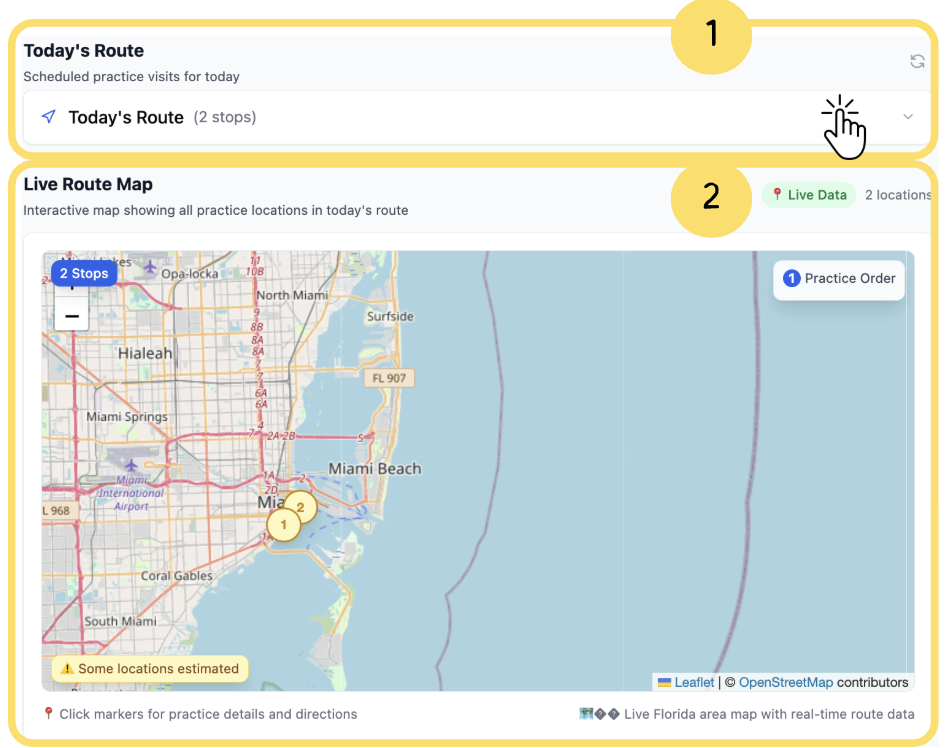
Click on Today’s Route drop down to view the list of practices assigned for today’s route.
These are the same practices that were assigned a route through the CRM.
When no practices are scheduled for today, this section will show “No routes scheduled for today.”
To add practices to your route, click Go to CRM and select practices from there.
Once practices are added and assign a route, they will automatically appear in Today’s Route for tracking and navigation.
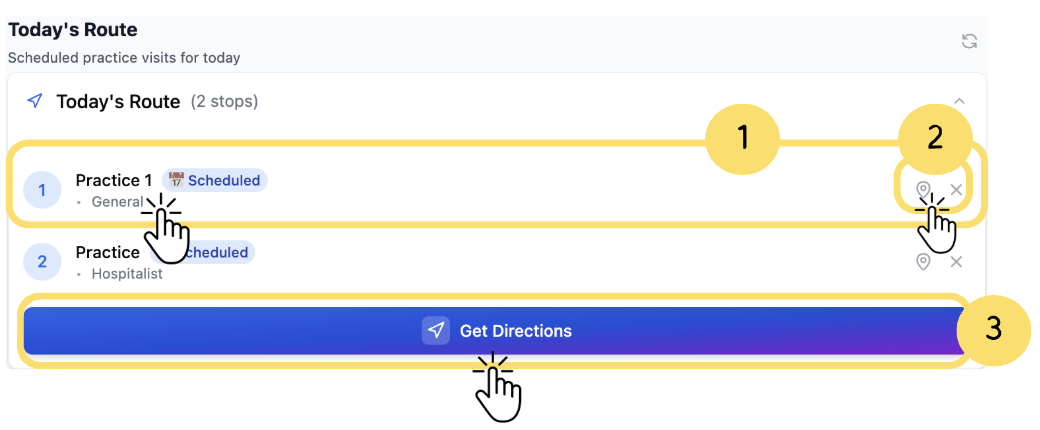
1.Practice Details
→ Shows each scheduled practice stop with its name, speciality, and status (e.g.,Scheduled).
→ Clicking the practice name opens it with more details inside CRM.
2.Map & Remove Options
→ Map Pin Icon: View the practice on the map for location and route details.
→ X Icon: Remove the practice from today’s route.
3.Get Directions: Click the Get Directions button to generate the complete route with all stops.
Live Route Map shows the real time map view of today’s scheduled route. It provides a clear navigation path for the day.
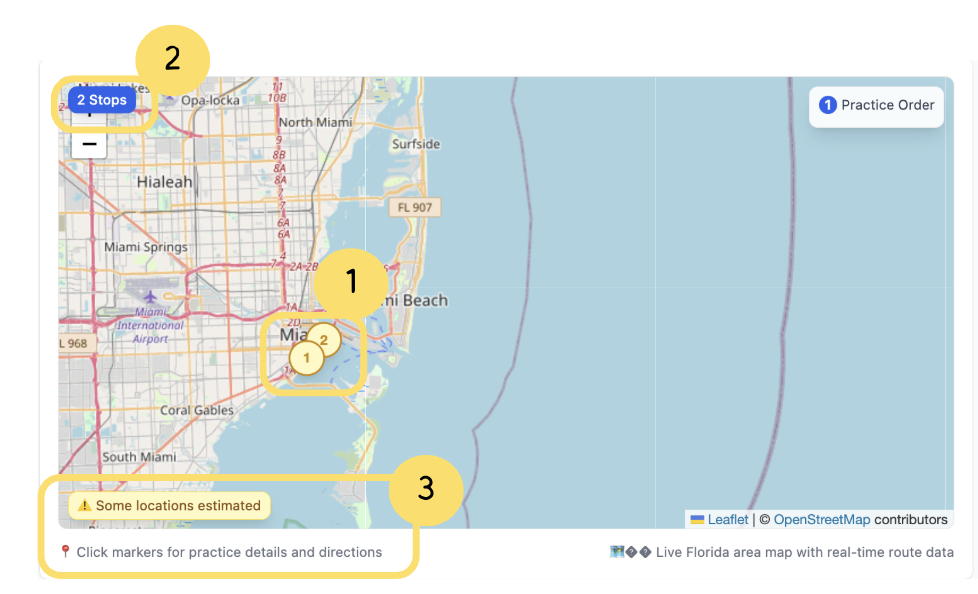
Practice Locations
The numbered markers (e.g.,1, 2) represent the specific practice locations assigned to your route.
Numbers show the order of visits.
Clicking on a marker opens practice details and directions.
Total Stops
The 2 Stops indicator shows the total number of practice locations included in the current route.
This helps you quickly see how many stops are planned for the trip.
Location Accuracy Notice
The “Some locations estimated” message indicates that one or more practice addresses may not have exact coordinates and are displayed as estimated.
Always verify directions before travel.
