
Quick Actions
Quick Actions
The Quick Actions section lets you instantly log important activities such as calls, spend, visits, and new contacts. With simple forms connected to the CRM, it ensures all key interactions are captured quickly and accurately for seamless tracking.

1-Log Call
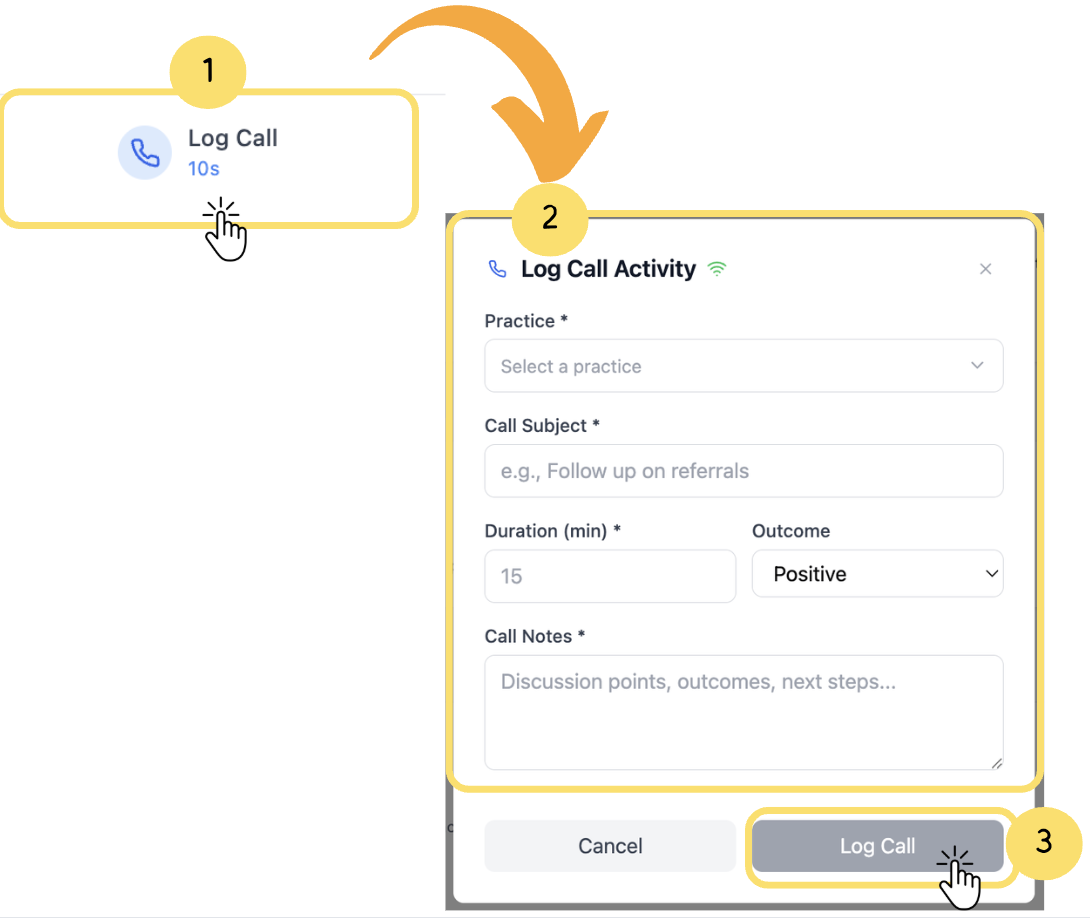
1. Click onLog Callin the dashboard.
2. Fill out the fields:
1. Practice (required) (select from dropdown)
All the practices that appear here are pulled from the CRM
2. Call Subject (required)
3. Duration (minutes) (required)
4. Outcome (choose from dropdown: Positive, Neutral, Negative, No)
5. Call Notes(required)
3. Click onLog Callto save.
Before you log, make sure to fill out all the mandatory fields marked with anasterisk (*)to successfully save the entry.
2. Add Spend
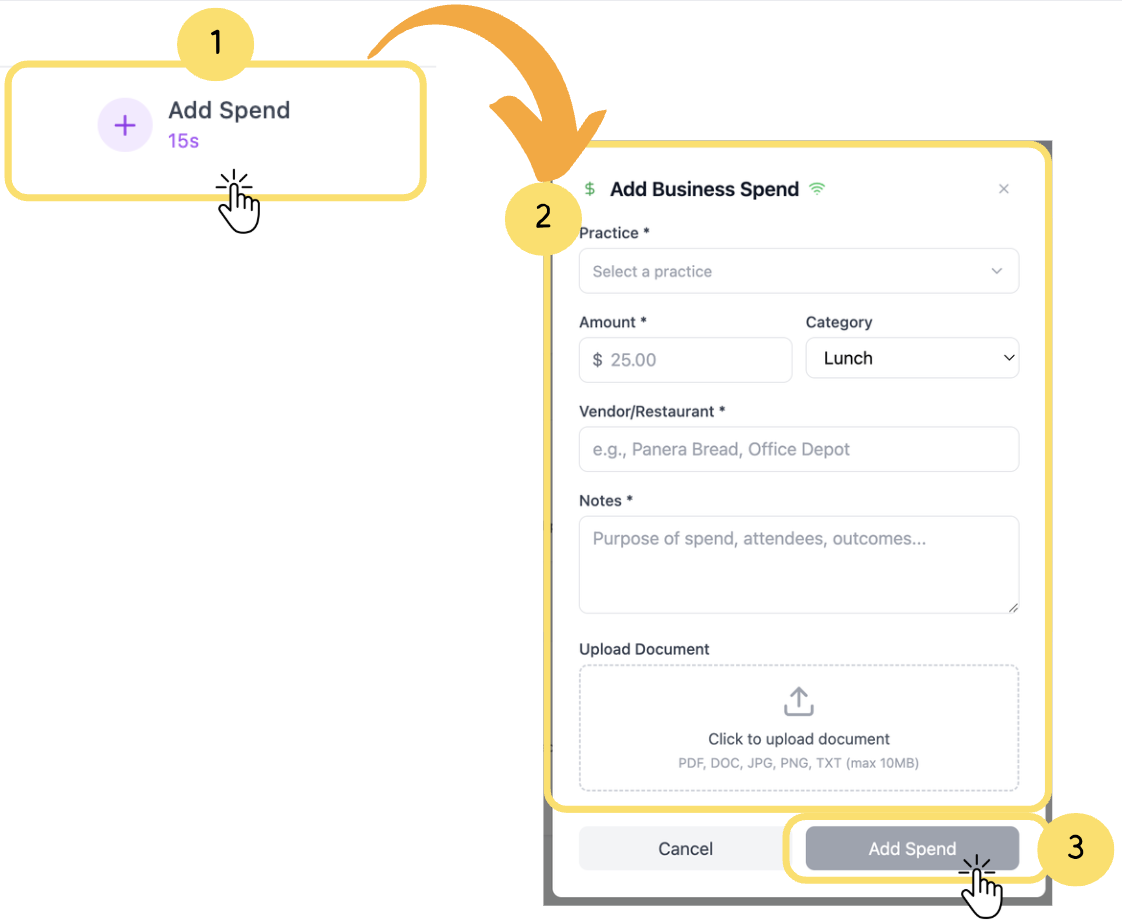
1. Click on Add Spend in the dashboard.
2. Fill out the fields:
1. Practice (required) (select from dropdown)
All the practices that appear here are pulled from the CRM.
2. Amount (required)
3. Category (choose from dropdown, e.g., Lunch, Travel, Office Supplies)
4. Vendor/Restaurant (required)
5. Notes (required)
6. Upload Document (optional)
3. Click on Add Spend to save.
Before you log, make sure to fill out all the mandatory fields marked with an asterisk (*) to successfully save the entry.
3. New Visit
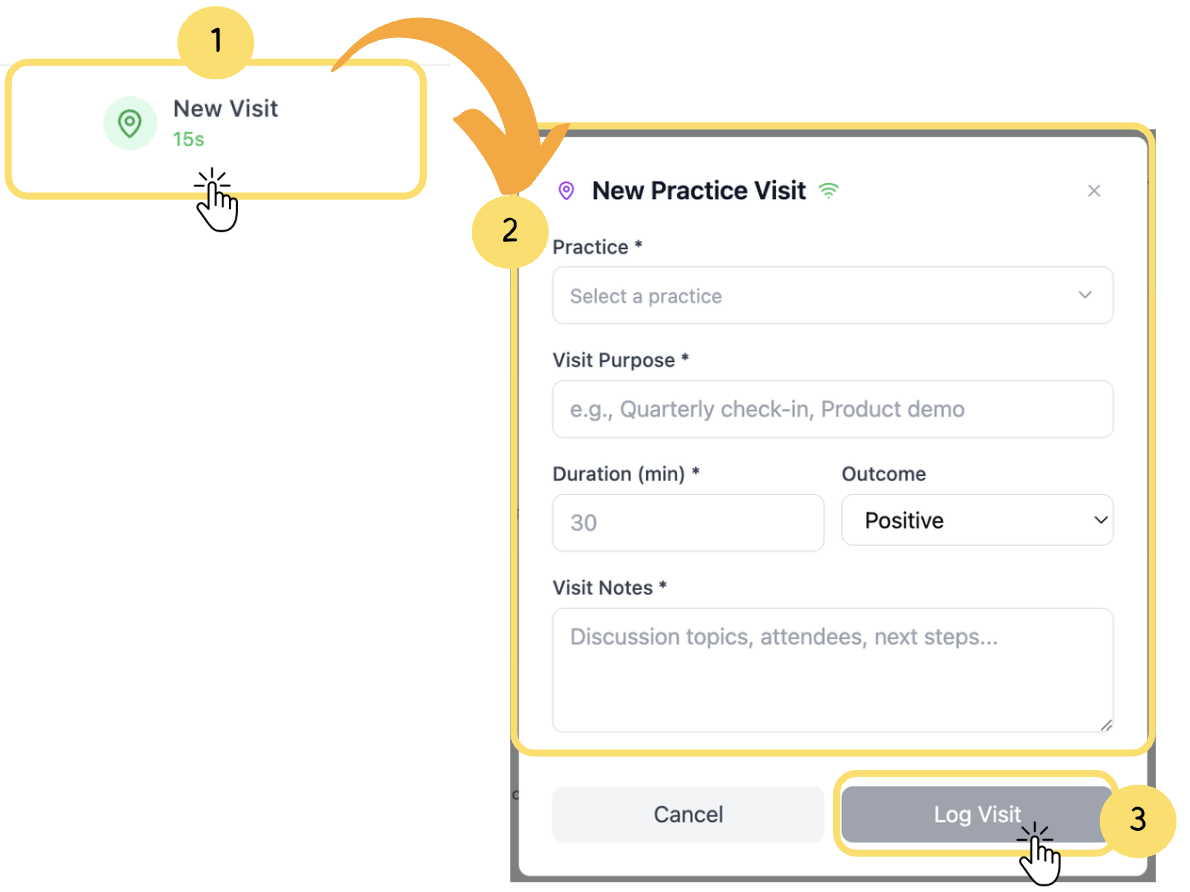
1. Click on New Visit in the dashboard.
2. Fill out the fields:
1. Practice (required) (select from dropdown)
All the practices that appear here are pulled from the CRM
2. Visit Purpose (required)
3. Duration (required) (minutes)
4. Outcome (choose from dropdown: Positive, Negative)
5. Visit Notes (required)
3. Click on Log Visit to save.
Before you log, make sure to fill out all the mandatory fields marked with an asterisk (*) to successfully save the entry.
4. New Contact
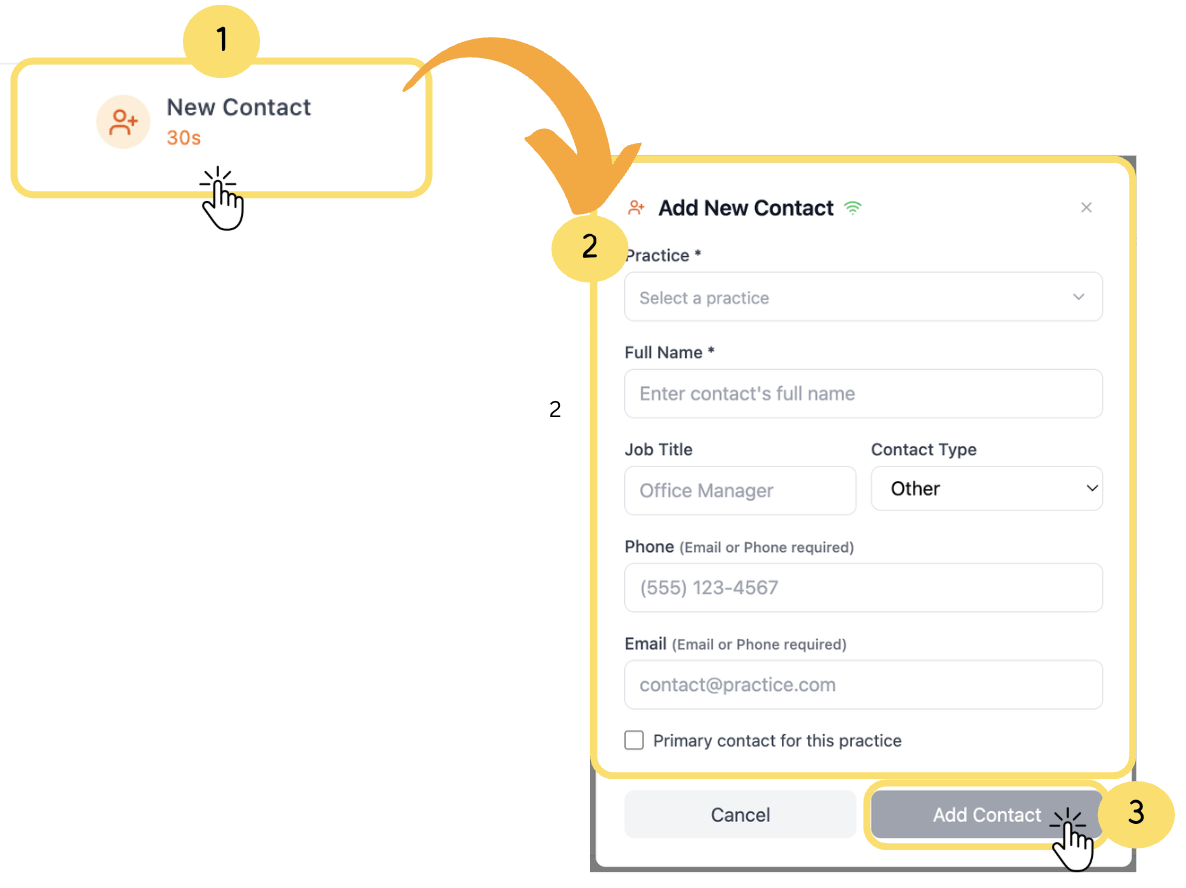
1. Click on New Contact in the dashboard.
2. Fill out the fields:
1. Practice (required) (select from dropdown)
All the practices that appear here are pulled from the CRM
2. Full Name (required)
3. Job Title
4. Contact Type
5. Phone
6. Email
7.Primary Contact for this practice (Select this field to set the contact as the primary for the chosen practice.)
3. Click on Add Contact to save.
Before you log, make sure to fill out all the mandatory fields marked with an asterisk (*) to successfully save the entry.
