
Practice Details
Practice Details
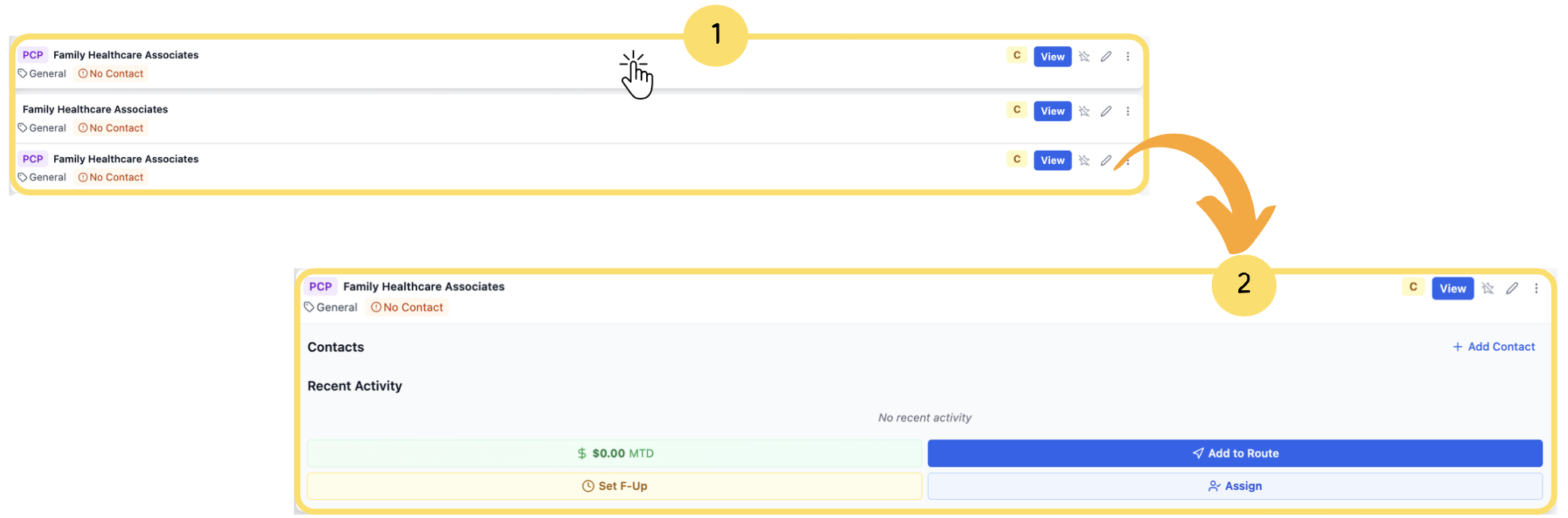
From the CRM Dashboard, click on any practice from the list.
The selected practice record will expand and display its details.
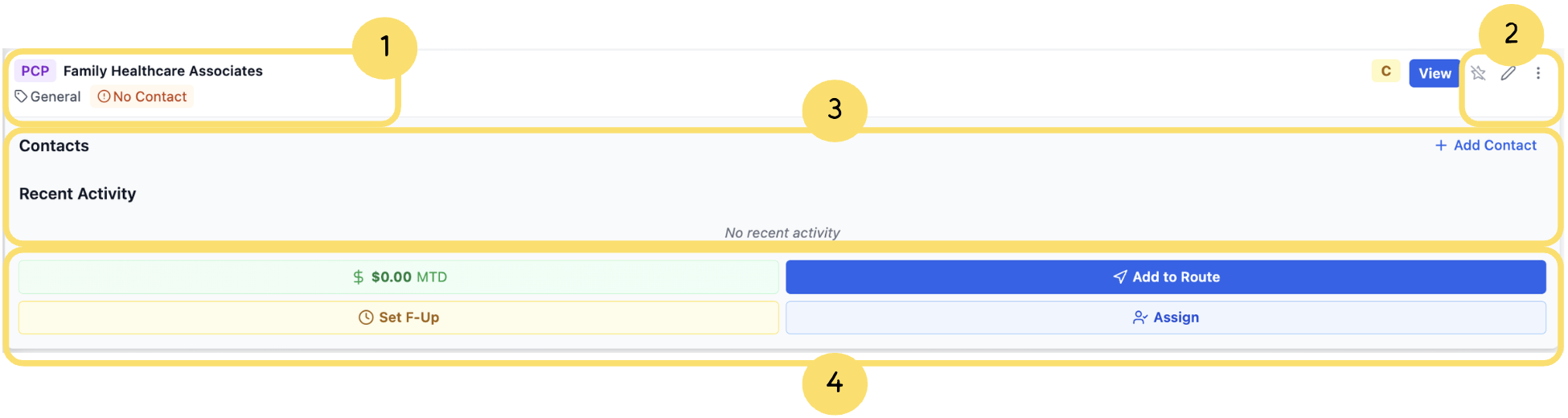
Practice Header– Displays key practice details such as name, category (e.g., PCP, General), and current contact status for quick identification.
Quick Actions– Provides instant access to options like viewing details, editing information, or opening additional menu actions.
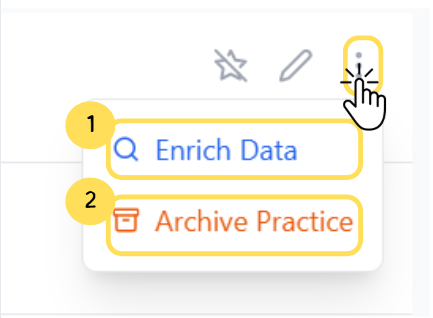
1.Enrich Data– Enhances the selected practice record by fetching and updating missing or outdated information from integrated data sources, ensuring accuracy and completeness.
Practice Data Enrichment Process
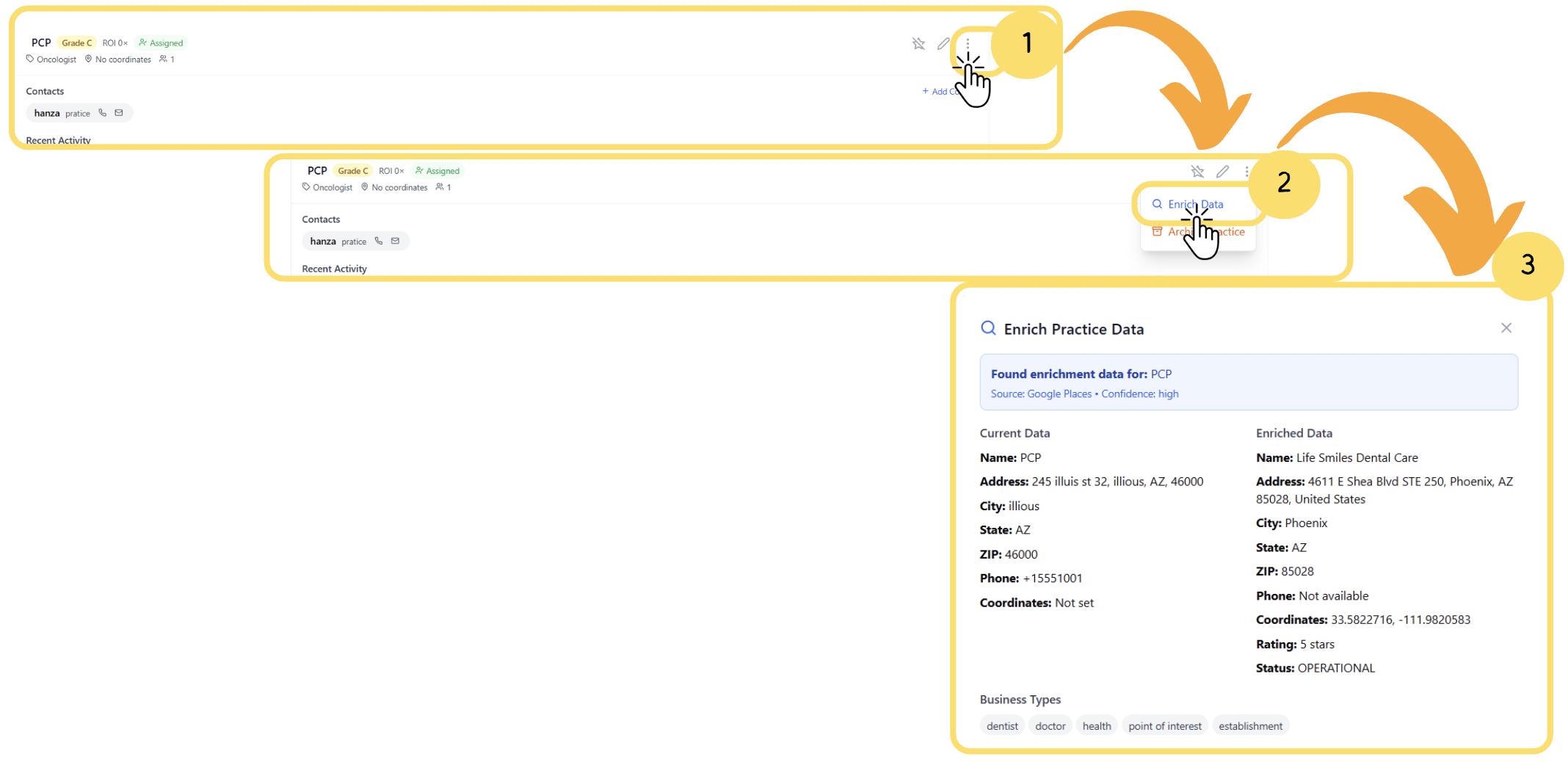
Access Actions Menu– Click the three-dot menu beside a practice record to open additional options.
Select “Enrich Data”– Choose this option to automatically retrieve updated and verified practice information from connected data sources (e.g., Google Places).
View Enriched Data Comparison– A side-by-side view displays the current data and newly enriched data, including updated address, phone, coordinates, and operational details. This helps ensure the practice record remains accurate and up to date.
2.Archive Practice– Moves the selected practice to the archive, removing it from active lists while preserving its data for future reference or reactivation.
Contact & Activity Section– Lists associated contacts and recent interactions with the practice; new contacts can be added directly from here.
Engagement Tools– Allows adding the practice to a route, assigning it to a representative, setting follow-ups, and tracking month-to-date spend.
🎥Watch the Video Tutorial
For a clearer understanding of the steps outlined above, please refer to the video tutorial provided below. It walks you through each part of the guide for better clarity and comprehension.
