
CRM > CRM Dashboard
CRM Dashboard
The CRM Dashboard provides a centralized interface for managing, filtering, and tracking all practices within the system. Users can quickly search and organize practices using the Search Bar or Filter Options, making it easy to navigate by name, specialty, status, territory, or practice type.
The Quick Stats Overview at the top highlights essential metrics such as:
Total number of practices
Overdue follow-ups
Practices without contact details
Individual practices are displayed in a List View, showcasing key data including the practice name, type, assignment status, and contact indicators. Each row offers immediate access to view, edit, or update information.
A Quick Action Toolbar enables users to perform critical actions such as:
Logging a call
Adding practice spend
Recording visits
These can be done directly from the dashboard without navigating away.
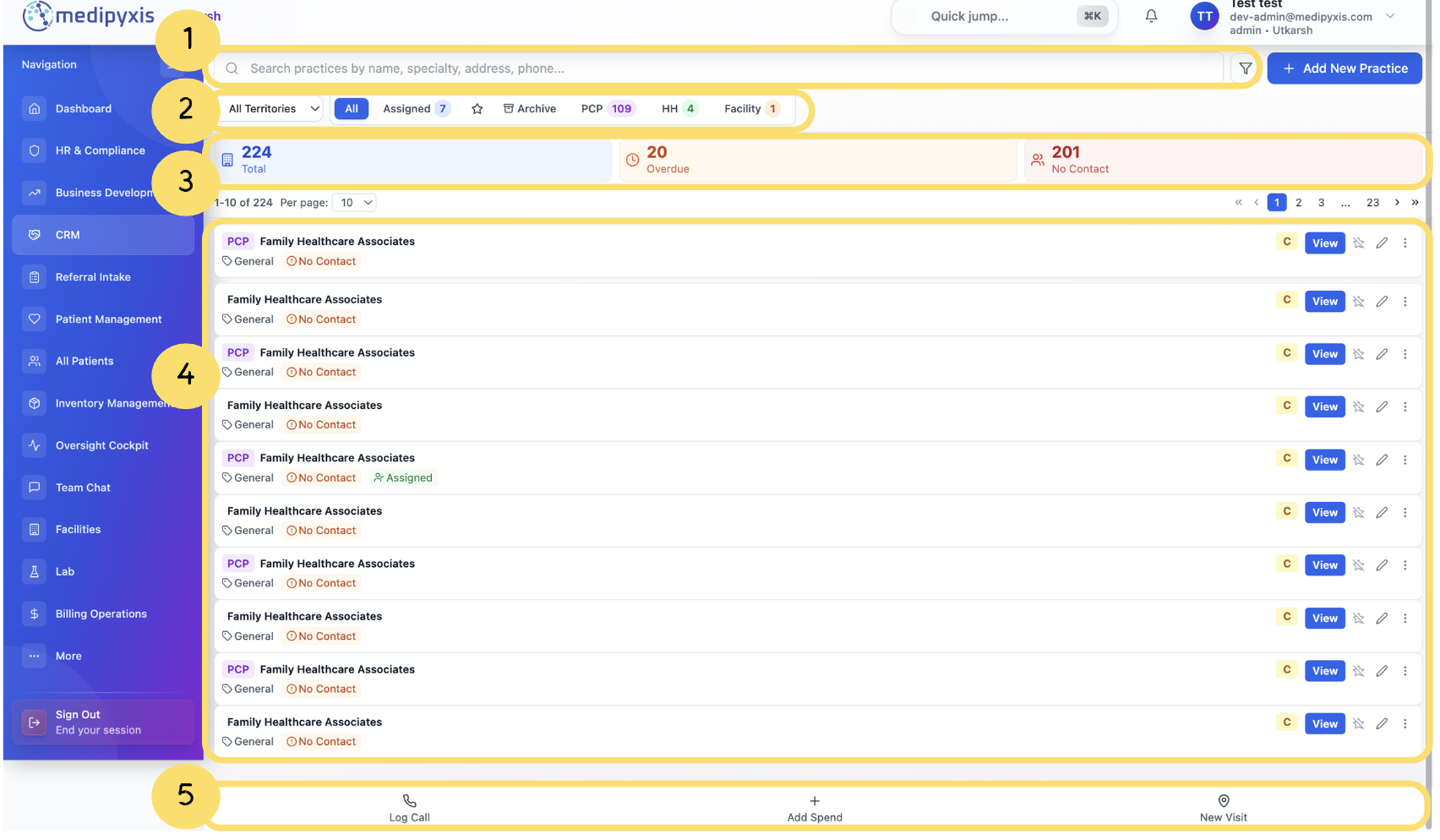
Key Interface Features
Search Bar– Allows users to find practices by name, specialty, address, or phone number.
Filter Options– Enables filtering based on territory, assigned representatives, status (e.g., archived), and type (e.g., PCP, Home Health, Facility).
Summary Metrics– Displays an overview of total practices, those with overdue follow-ups, and those lacking contact details.
Practice List View– Shows all practices with essential information and direct access to manage records.
Quick Action Toolbar– Provides one-click access to log calls, add spend, or record visits.
Quick Actions (General Steps)
When performing any quick action from the toolbar:
Select a Practice from the dropdown list.
Fill in Required Details for the selected action (e.g., call subject, duration, outcome, notes).
Click “Log Call” to save the interaction.
🎥Watch the Video Tutorial
A tutorial video is available to walk users through each section of the CRM Dashboard and quick actions to enhance understanding and ease of use.
