
Credential Tracking
Credential Tracking
The Credential Tracker in Medipyxis helps HR and operations teams keep professional healthcare credentials up-to-date and audit-ready. One can easily monitor expiration dates, upload new documents, and track the status of every staff credential—without needing to chase emails or spreadsheets.
You can:
View how many credentials are currently valid or need attention
Filter by credential type, employee role, status, and territory
Export credential records
Upload or update credential documents for any employee
Add new credential
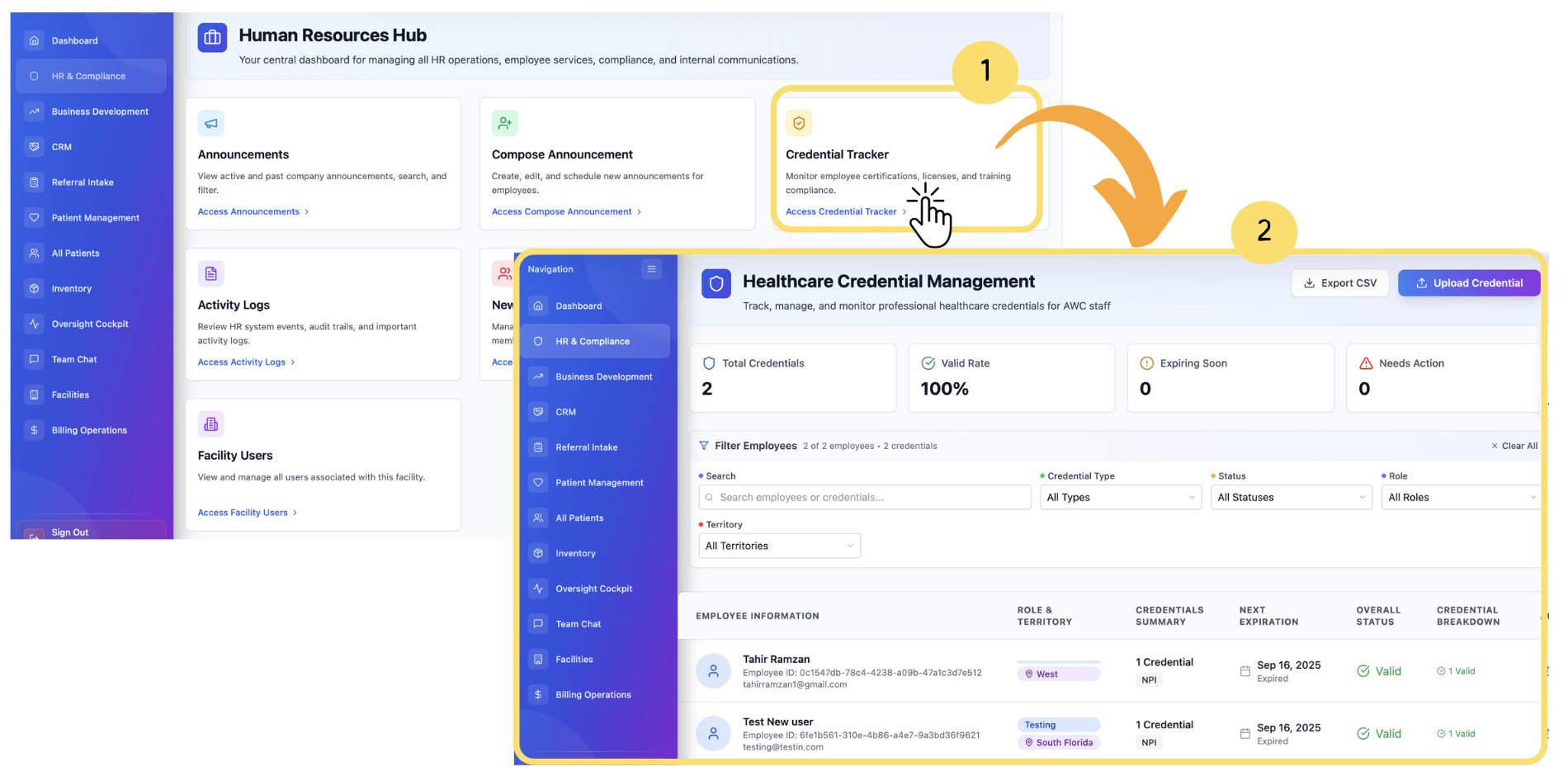
From the left menu, go to HR & Compliance.
Click Credential Tracker.
You’ll land on the Healthcare Credential Management dashboard.
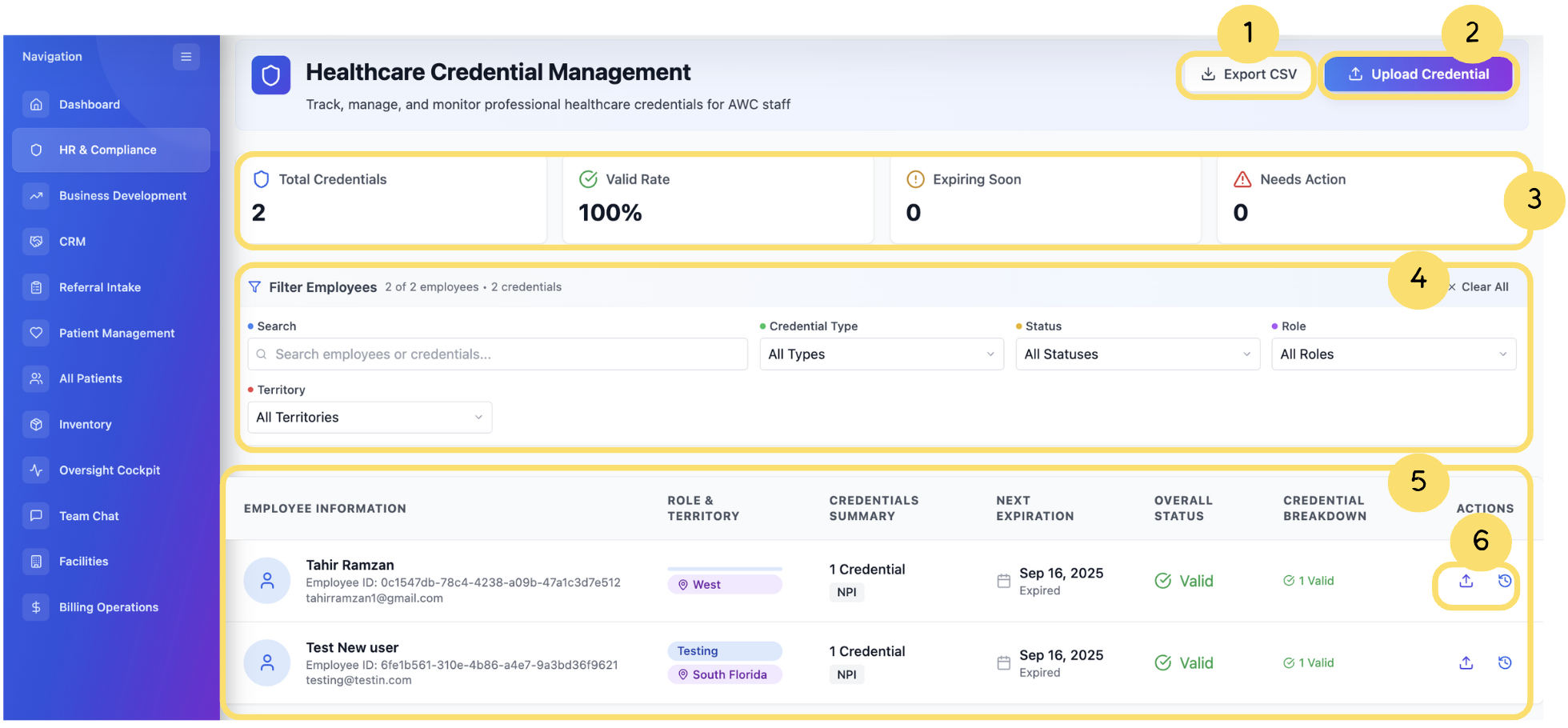
Here you will seeAt the top of the page, you will find key metrics to help you quickly understand your organization's credential health.
These include:
Total Credentials– Total number of credential records tracked in the system.
Valid Rate– Percentage of credentials that are currently valid and up to date.
Expiring Soon– Credentials that will expire shortly and need renewal.
Needs Action– Credentials that are expired or missing and need immediate attention.
Filter & Search Section
Use this panel to find specific credential records.
You can:
Search by employee name or credential type
Filter by:
Credential Type (e.g., RN License, WOCN Certification)
Credential Status (Valid, Expired, etc.)
Role (Admin, Manager, etc.)
Territory (National or regional)
You can also clear all filters to view the complete list again.
Credential Records List Section
This section shows each employee along with their credential summary.
Each record includes:
Employee Name
Role & Assigned Territory
Number and Type of Credentials
Expiration Dates
Current Status– Valid, Expiring, Expired, or Missing
Action Buttons– Edit or view full details for each credential
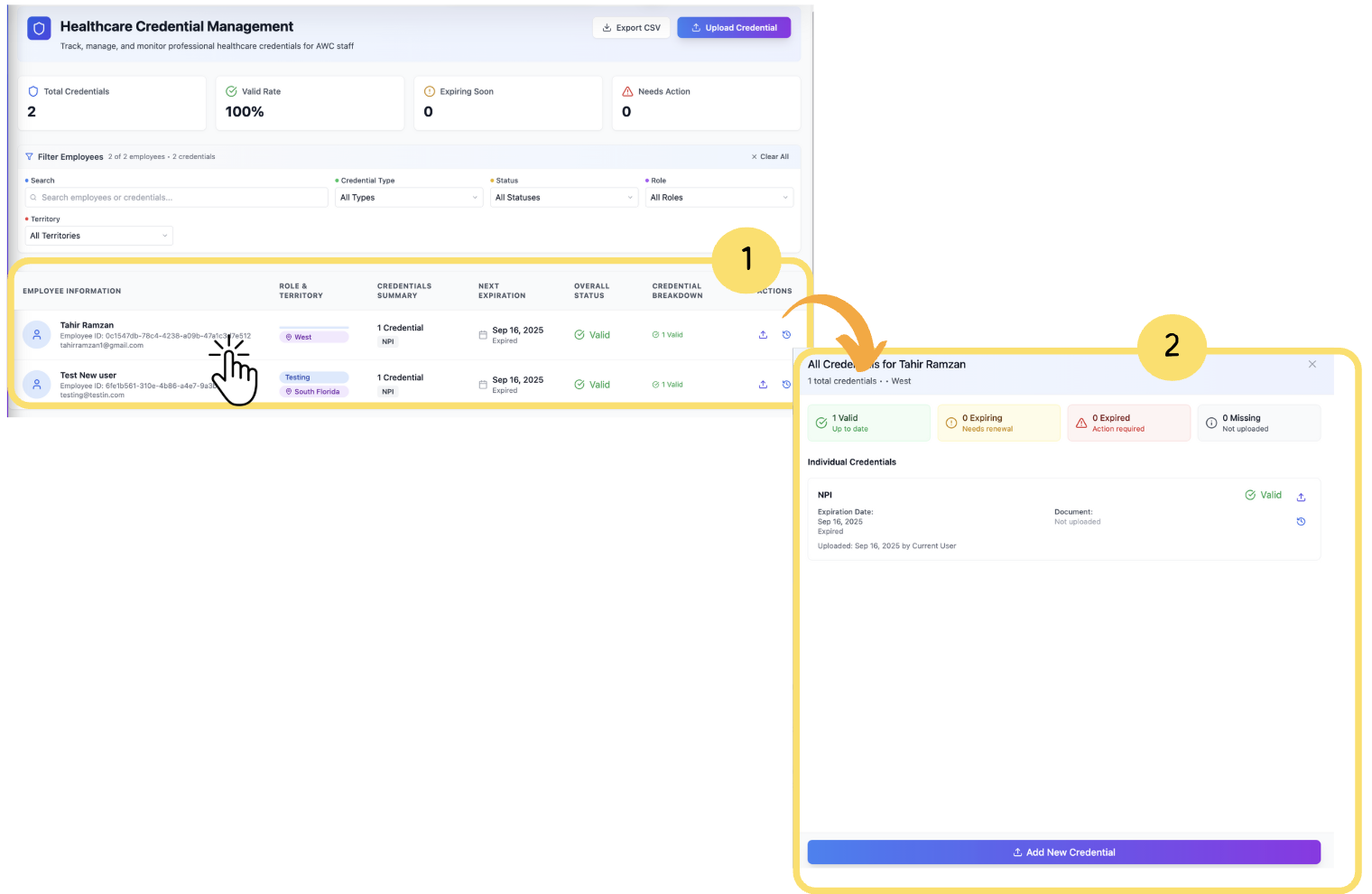
Clicking on a row will open a detailed view of all credentials for that employee.
Credential Detail View
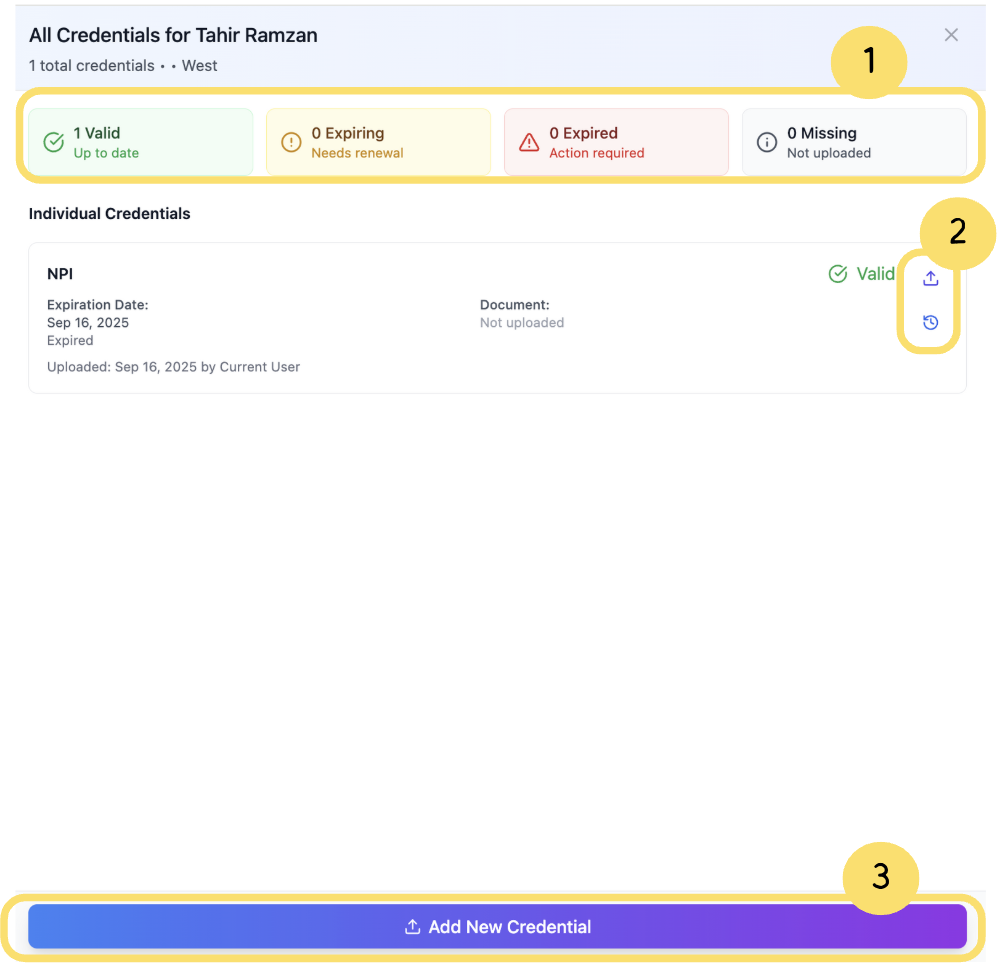
When you click on a credential record, you’ll see:
Credential Type and Status
Expiration and Upload Dates
Uploaded Document– Available to download or replace
Employee Details– Name, Role, Employee ID, and assigned territory
Credential Status Summary:
Number of Valid Credentials
Number Expiring Soon
Number Expired
Credentials Not Uploaded
From here, you can:
Edit the credential
Upload a new version of the document
Download the current file
