
CRM > Add New Practice
Add New Practice
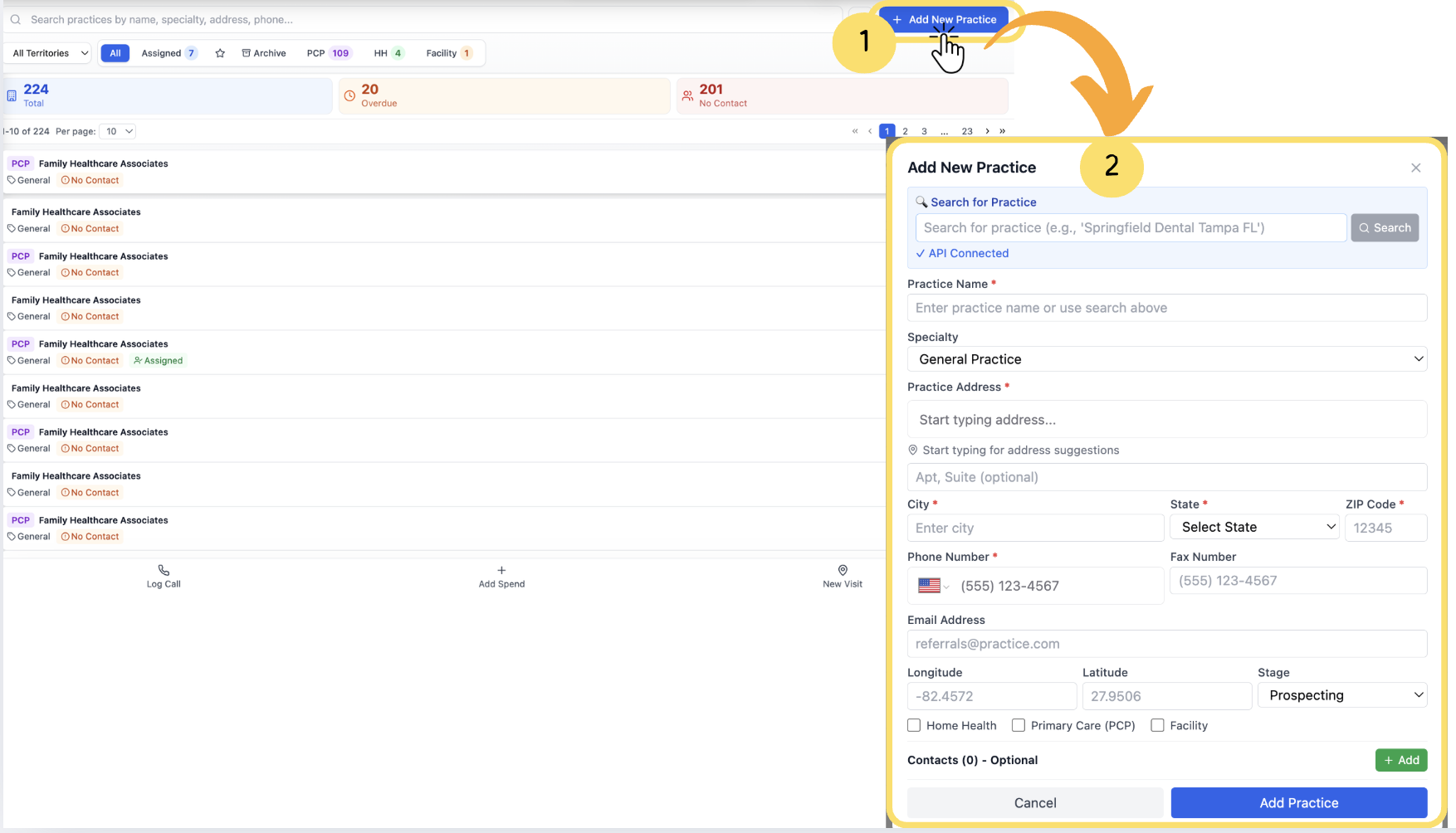
In the CRM Dashboard, click the “+ Add New Practice” icon located at the top-right corner of the screen to add a new practice.
The Add New Practice form will appear. Fill out all the required fields and details in the form.
How To Fill Practice Form
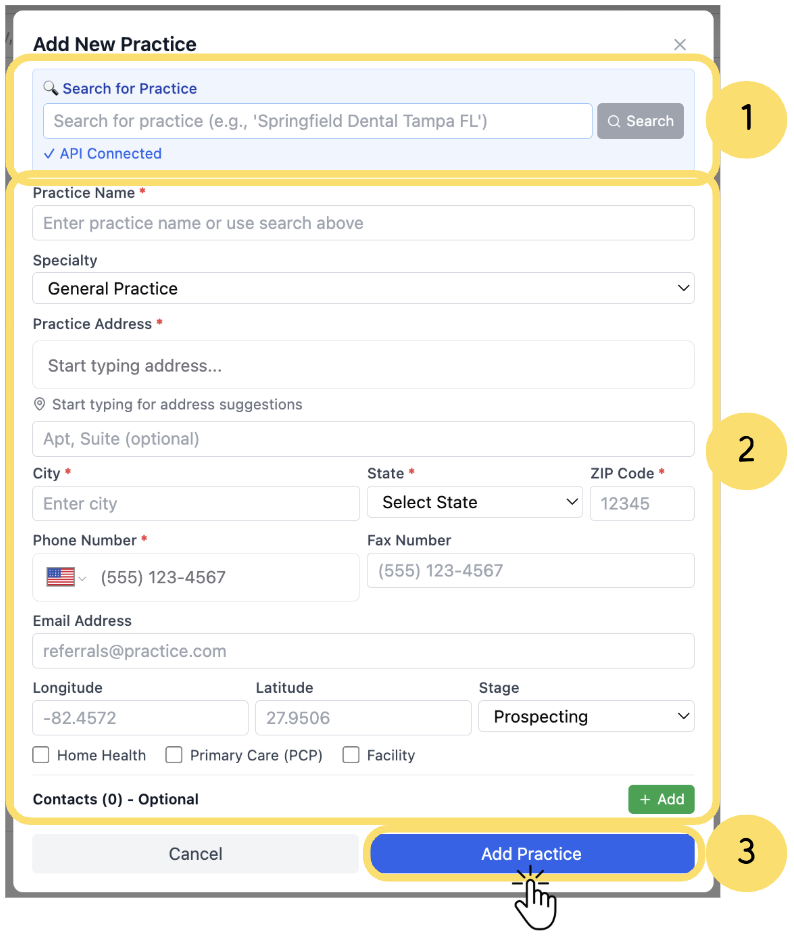
Search for Practice– Use this field to look up an existing practice by name or location. The API-connected search ensures accurate and real-time suggestions for faster data entry.
Practice Details Form– Enter all required information such as practice name, specialty, address, contact details, geographic coordinates, and stage (e.g., Prospecting). Optional fields like facility type or contacts can also be added here.
Add Practice Button– Once all mandatory details are filled, click Add Practice to save the new practice record and make it available in the main Practice Dashboard.
Practice Auto-Fill from Search Results
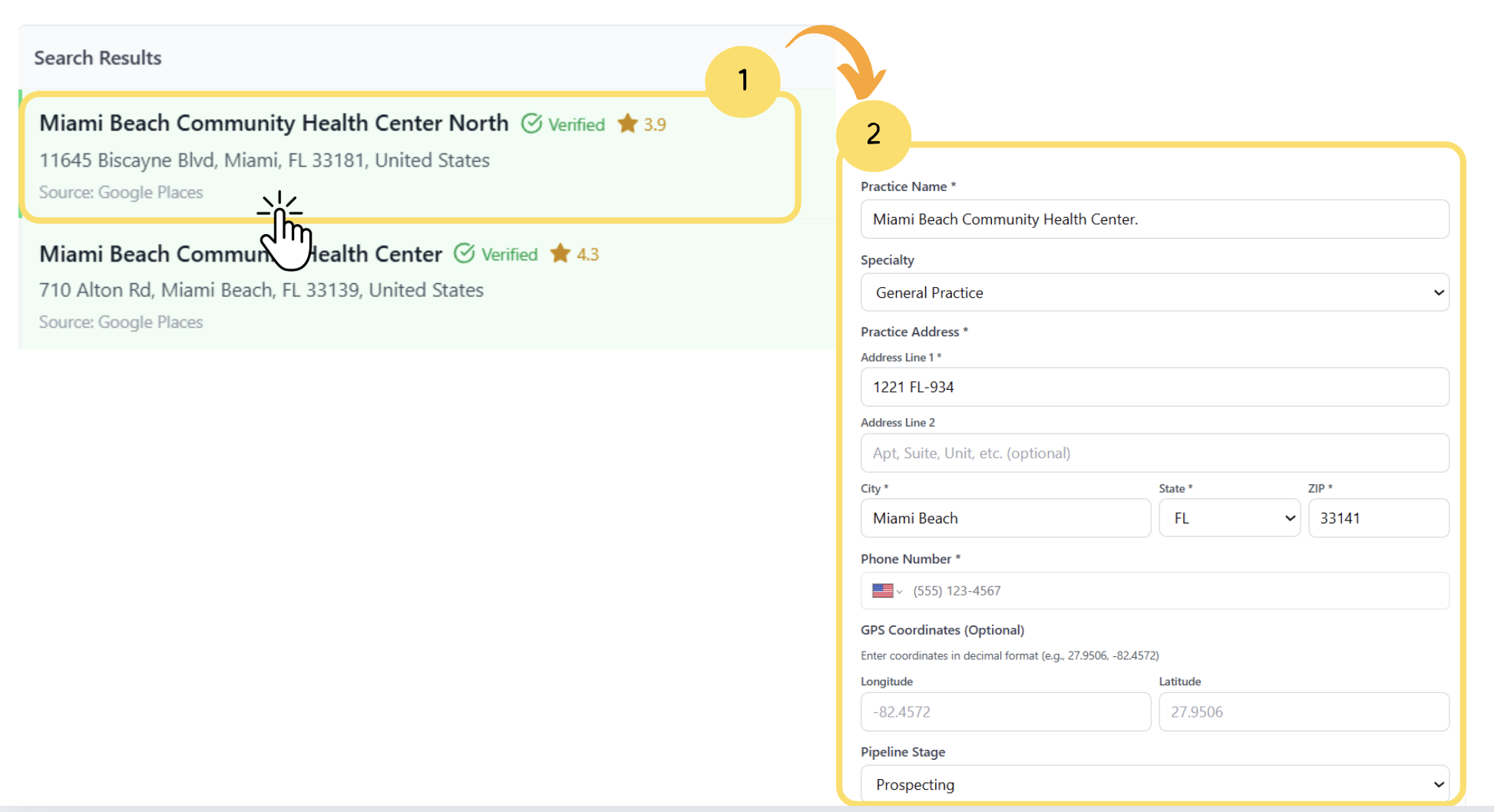
From the search results list, click on the desired practice.
Once selected, all related fields will be automatically populated with the practice details.
🎥Watch the Video Tutorial
For a clearer understanding of the steps outlined above, please refer to the video tutorial provided below. It walks you through each part of the guide for better clarity and comprehension.
